Access Reviews
An access review is a campaign that asks reviewers to look at every person's access across your connected systems and decide whether it is still appropriate. It is the evidence auditors ask for when they want to know that you check who has access, not just that you grant it.
Acknowledgement campaigns, which ask staff to read a policy, are covered on Policies & Campaigns. This page covers access reviews. Both live under Compliance → Campaigns and work the same way in the list.
Getting an Access Review Started
Owners and admins start an access review from Compliance → Campaigns with New access review. Members and viewers don't see the button. The form asks for:
- Name, for example "Q4 access review".
- Due date. Reminders go out every 7 days until every item is decided.
- Who to review: All users, or Admins only, which includes super admins.
- Reviewers: the owners and admins who will make the decisions and get the notifications. You are selected by default.
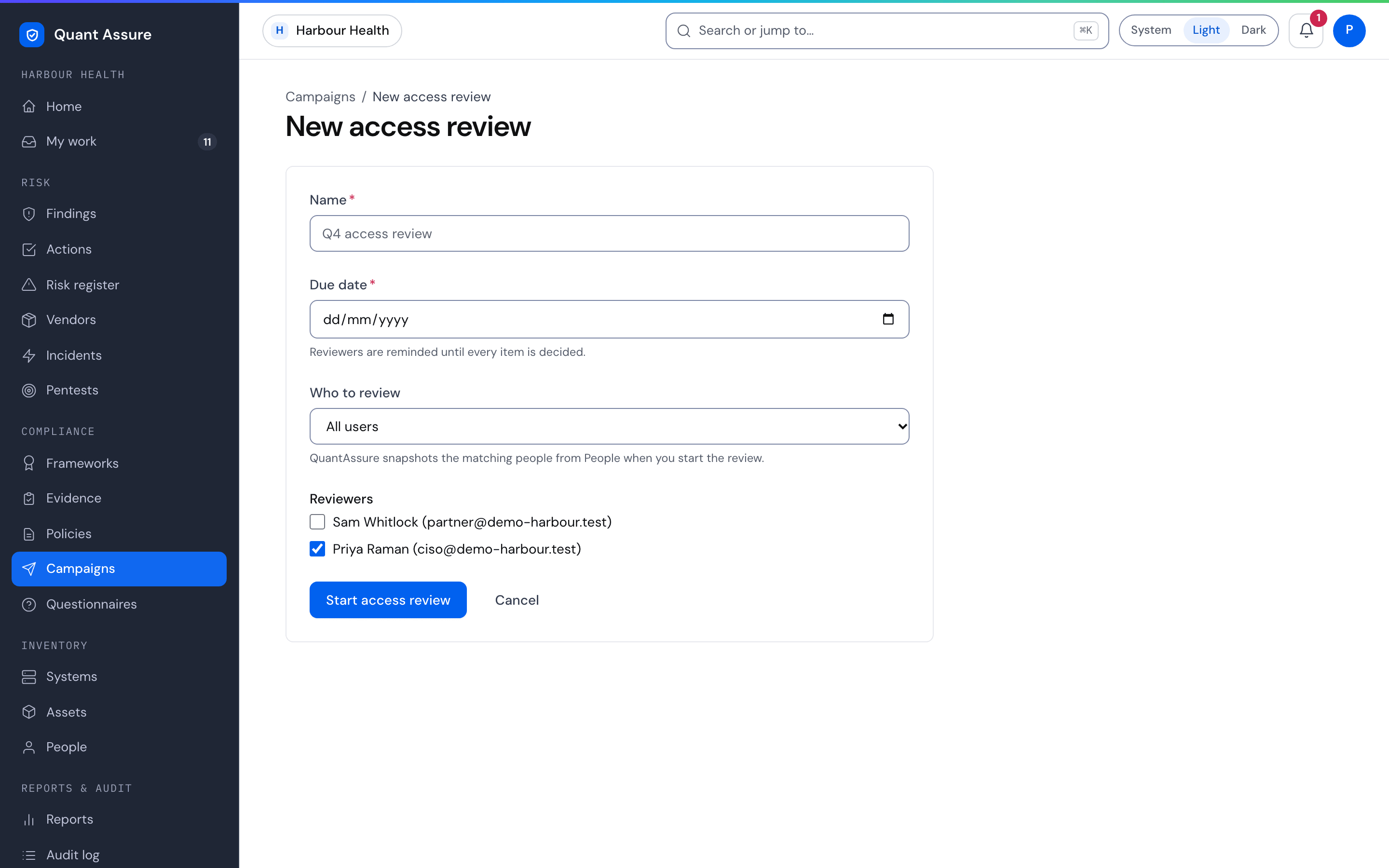
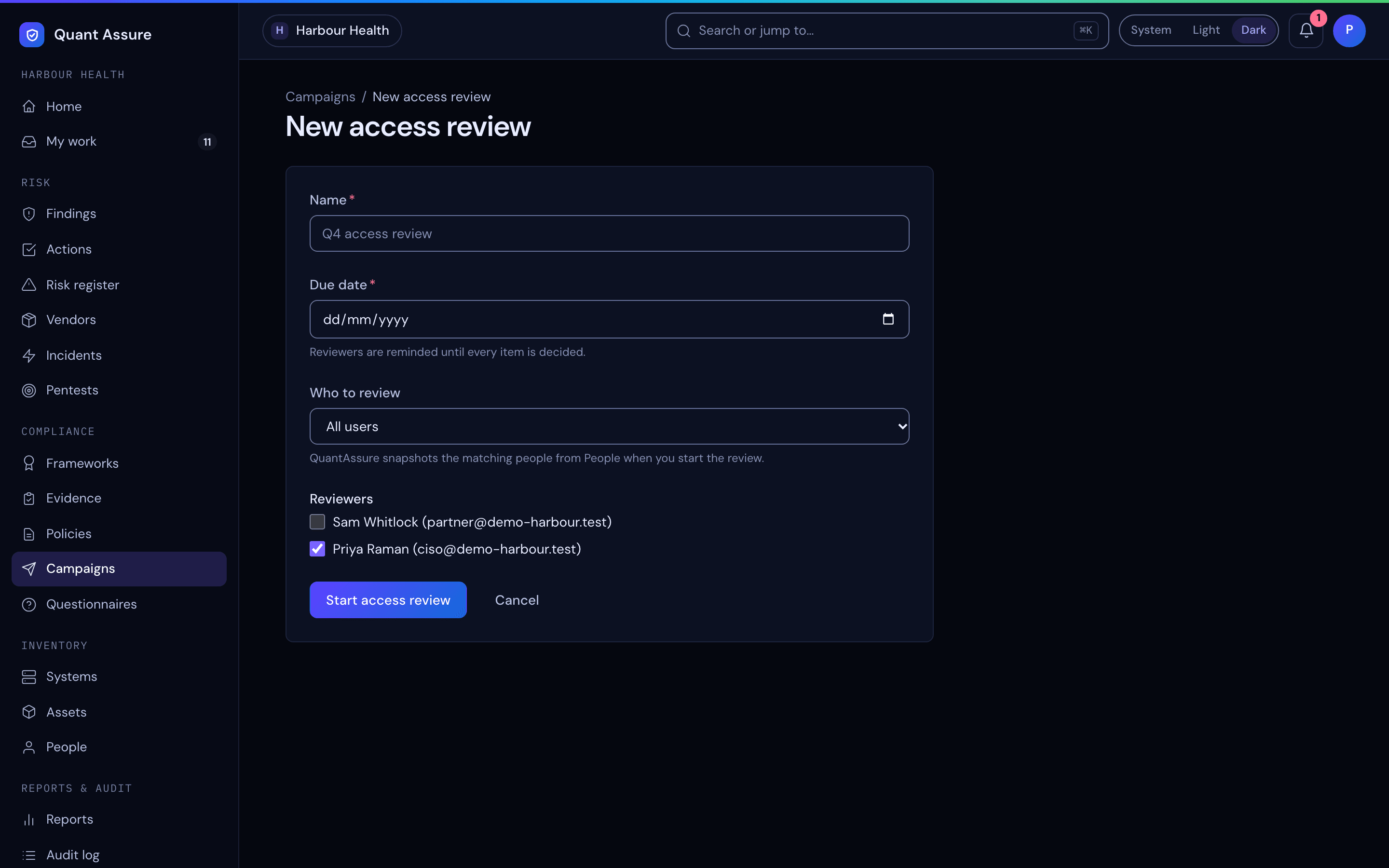
When you start the review, QuantAssure takes the list of people from People as it is at that moment and creates one item for each person, with a snapshot of their accounts and roles. People who join your systems later are not added, and later changes to someone's access don't change the snapshot being reviewed. The reviewers are told straight away. If nobody matches the scope, the review is not created and the form says so: check that a directory source such as Google Workspace has synced, or widen the scope.
Reviews limited to particular systems or to stale accounts (accounts the collector has marked as not signed in for too long) aren't offered in the form yet. Ask support if you need one of those.
The Campaigns List
Compliance → Campaigns is described as "Review campaigns
for policy acknowledgements and access reviews." Each row shows the
campaign's name, its type (Access Review), who created it,
the date, how many items have been decided (for example, 12/40), a
status pill and, when there is one, the due date. The due date turns red
when an unfinished campaign is past it.
Search with "Search campaigns...", filter by Type (All Types, Policy acknowledgement, Access Review) and Status (All, Active, Overdue, Completed, Cancelled), and sort by Created (Newest), Created (Oldest), Due Date (Soonest) or Due Date (Latest).
Campaign statuses
| Status | What it means |
|---|---|
| Active | Items are still waiting for a decision. |
| Overdue | The due date has passed with items still undecided. The campaign moves here by itself, and reviewers get one "Overdue" notification. Decisions and reminders carry on as before until every item is decided or the campaign is cancelled. |
| Completed | Every item has been decided. The campaign closes itself and records the completion date. |
| Cancelled | An owner or admin cancelled it. It can't be restarted, and nothing more can be decided. |
Reviewing and Deciding
Open a campaign to see it in full. The breadcrumb reads Campaigns and the campaign's name, with its status beside the title. Across the top, tiles show Total items, Decided, Pending and a Complete percentage.
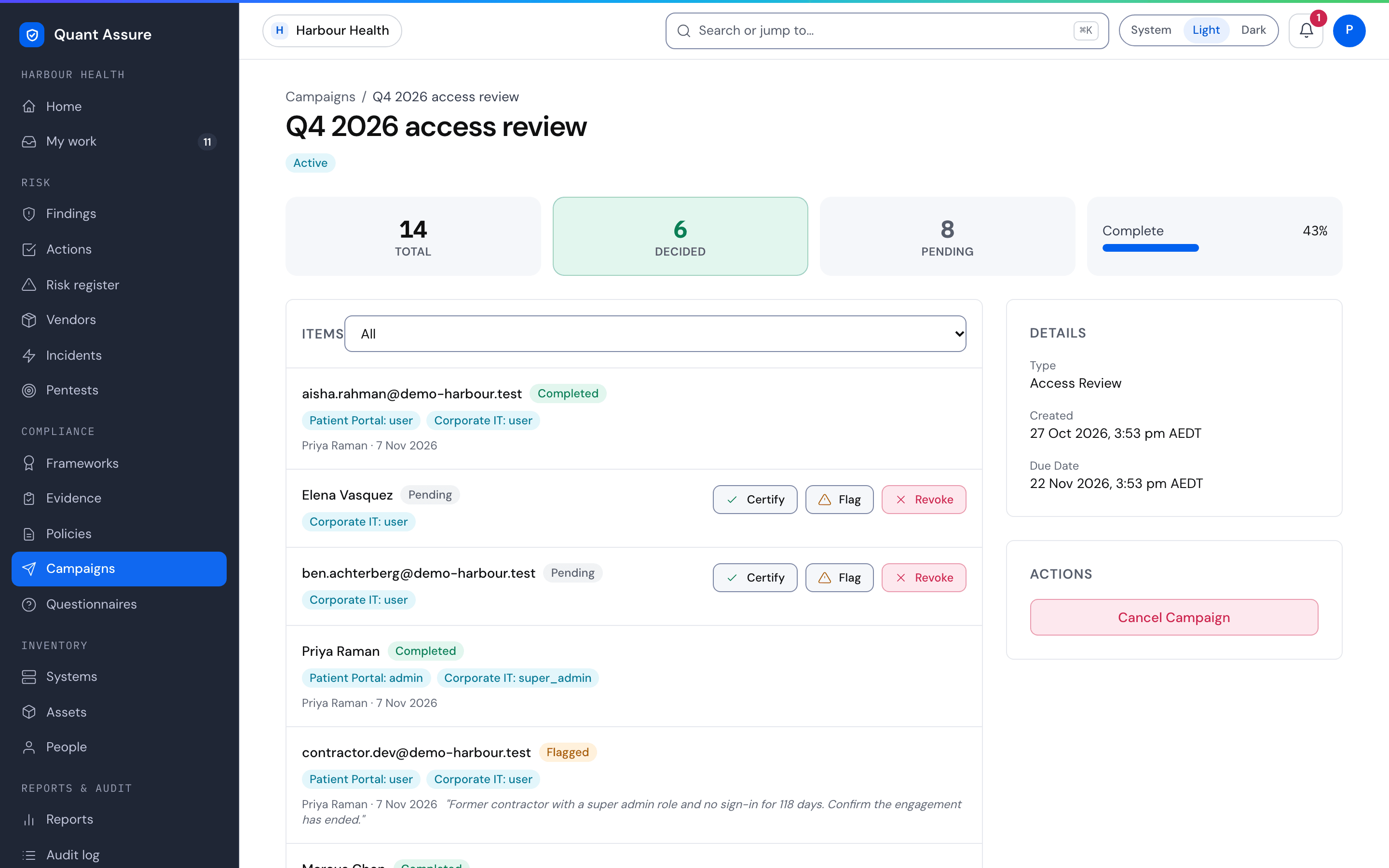
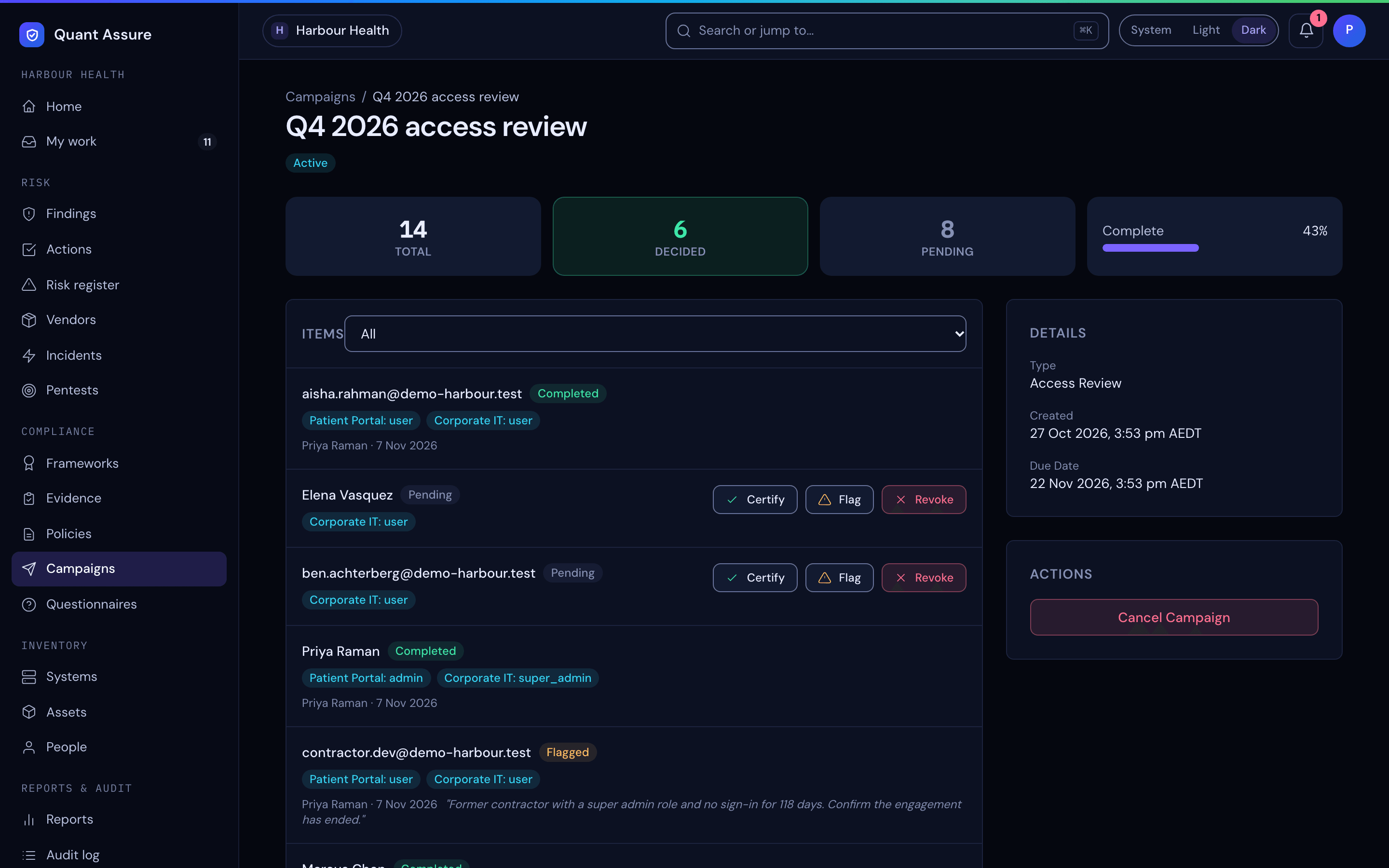
The Items list has one entry per person. Each shows:
- The person's name (or email address if there's no matching QuantAssure user), and a status pill.
- One blue pill for each account in the snapshot, written as the system and the role, such as "Production Workspace: admin" or "GitHub: user".
- For decided items, who decided, when, and any justification recorded.
Use Filter items by status to narrow the list to All, Pending, Completed, Revoked or Flagged. Long campaigns are paged 50 items at a time.
The three decisions
On each pending item in an active or overdue campaign, owners and admins see three buttons. Members and viewers don't see them:
| Button | Meaning | Item becomes |
|---|---|---|
| Certify | Access is appropriate and should stay as it is. | Completed |
| Flag | Needs investigation before you can decide. | Flagged |
| Revoke | Access should be removed. | Revoked |
A decision is final: the buttons disappear once an item is decided, and there is no undo. Review the person's accounts and role carefully, and use Flag when you aren't sure.
Choosing a button opens a Justification box. It is required for Revoke and Flag, and optional for Certify. It is saved with the decision, shown on the item, written to the audit log and copied into the finding that Revoke and Flag raise.
Every decision is written to the audit log with the reviewer, the person and the decision, which is the evidence trail for your auditors.
Revoke and Flag raise findings
Revoke does not remove anyone's access itself. It creates a finding so the removal is tracked to completion like any other issue:
| Decision | Finding title | Severity |
|---|---|---|
| Revoke | Access revocation required: (the person's email) | High |
| Flag | Access flagged for review: (the person's email) | Medium |
The finding starts as New, in the access-control category, with the person's accounts from the snapshot, the campaign's name and your justification attached. Its source is Access review, which you can pick in the Source filter on the Findings list. It is a finding like any other: assign an owner, create an action for the de-provisioning, and move it to resolved when the account has actually been removed. Certified items create no finding.
These findings are created directly by the review, so they keep the severity shown above until someone runs the AI analysis from the finding's own page. The AI can then reclassify them in the same way it does for scanner findings.
Finishing or Cancelling
When the last pending item is decided the campaign completes by itself. Decided items stay as they are and the findings already raised remain open for follow-up.
To stop a campaign early, owners and admins can choose Cancel Campaign in the Actions card (active and overdue campaigns). A dialog asks "Cancel this campaign?" and warns "This cannot be undone." Choose Cancel campaign to confirm, or Keep it to go back. Cancelling leaves undecided items undecided; start a new review if you still need them done. The Details card shows the type, created date, who created it, the due date and, once finished, the completion date.
Notifications and Reminders
- Assigned: each reviewer gets an "Access Review Assigned" notification through the channels you've configured, saying how many entitlements they've been asked to review and linking to the campaign.
- Overdue: the first time the due date passes with items undecided, the reviewers get a single "Overdue" notification. There is no further escalation.
- Reminders: while items are pending, reviewers get a "Reminder" at the campaign's reminder interval, up to five reminders each.
- My work: an owner or admin named as a reviewer sees the campaign in My work as a single entry, with the number of entitlements still to review.
Who Can Do What
| Role | Can |
|---|---|
| Owner, Admin | Start access reviews, open campaigns, decide access review items and cancel campaigns |
| Member | Open and read campaigns. Members can't start a review, decide access review items or cancel a campaign, and don't see those buttons. |
| Viewer | Open and read campaigns, with no decision buttons |
Any owner or admin can decide any item in a campaign, whether or not they were named as a reviewer. Being named decides who is notified and reminded.
How It Connects to the Rest of QuantAssure
- People: the source of the people and accounts under review.
- Findings and Actions: where revocations and flags are followed through.
- Compliance: reviewing access on a schedule supports access-control controls, and the audit log holds the decisions as evidence.
- Audit log: records the campaign being created or cancelled, and each decision.