Your First Audit Pack
This is where onboarding pays off. In this step you'll generate the two flagship audit reports — the AI Decision Audit Trail and SLA Compliance — turning everything the platform has collected and decided so far into evidence your auditor can hold.
Reports are evidence exports, frozen when generated. Some cover a period you choose; others show the state as of when they were generated. Download one as PDF, CSV, or JSON — the output format is chosen at download time, so one generated report serves all three.
Generating a Report
The report type that covers remediation tasks is called Actions, as it is across the rest of the dashboard (see Actions).
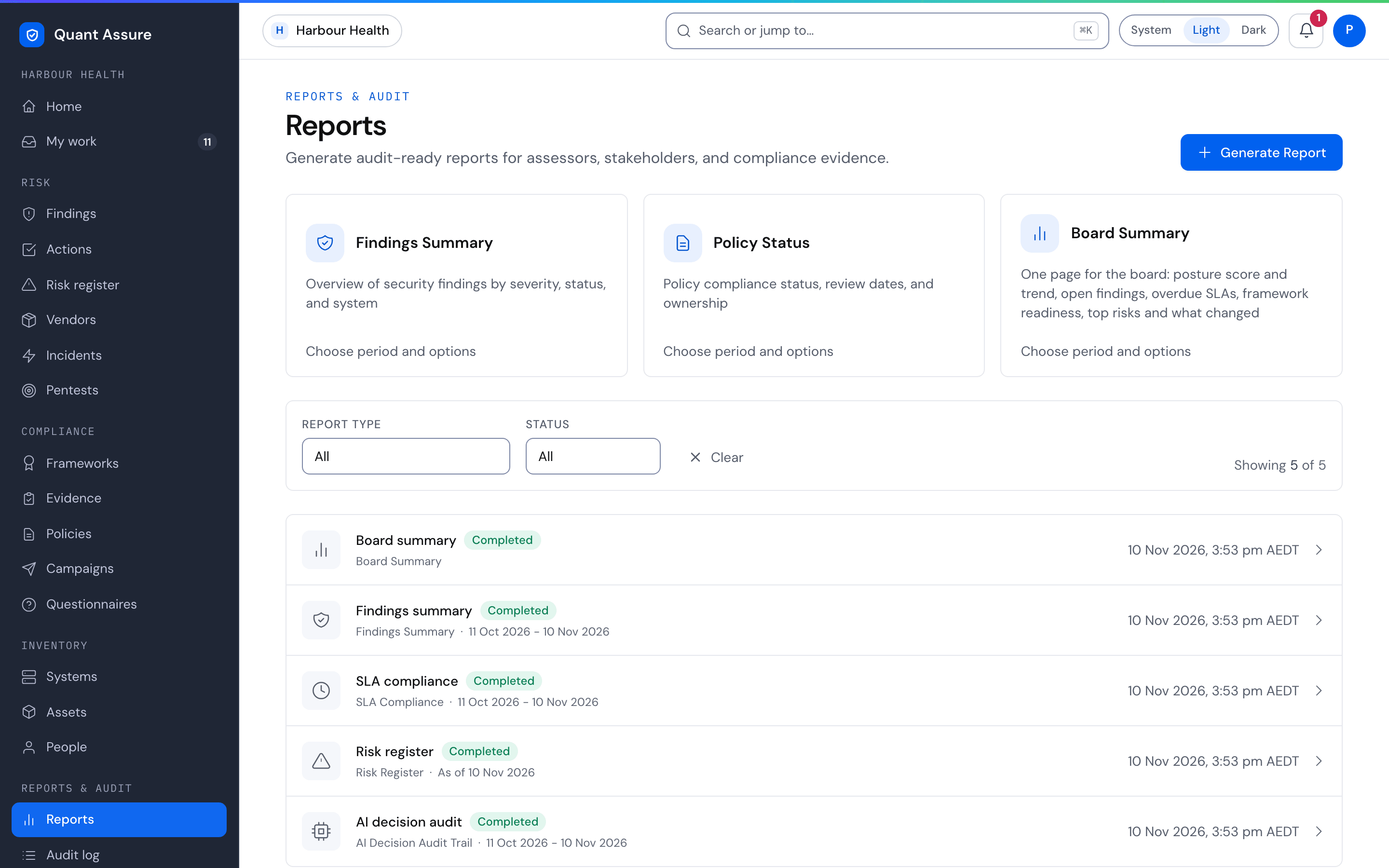
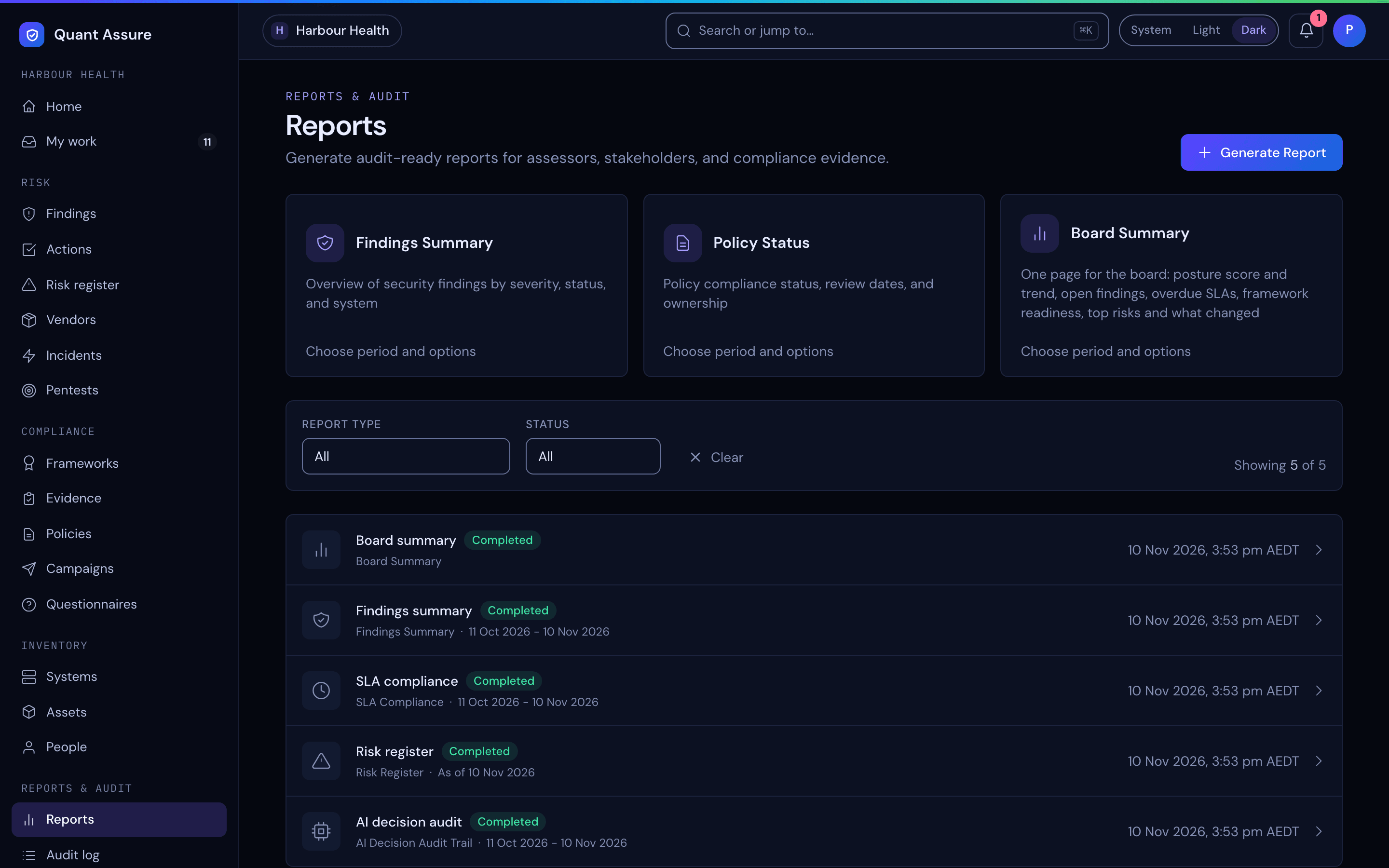
One step: on Reports, choose a report card (Board Summary, Findings Summary or Policy Status) to generate it straight away with the default period, the last 30 days, and open the finished report. Choose Choose period and options on a card to set the period or filters first. The cards and the Generate Report button are shown to roles that can change the organisation; viewers can open and download existing reports but not generate them.
Reports & audit → Reports → Generate Report:
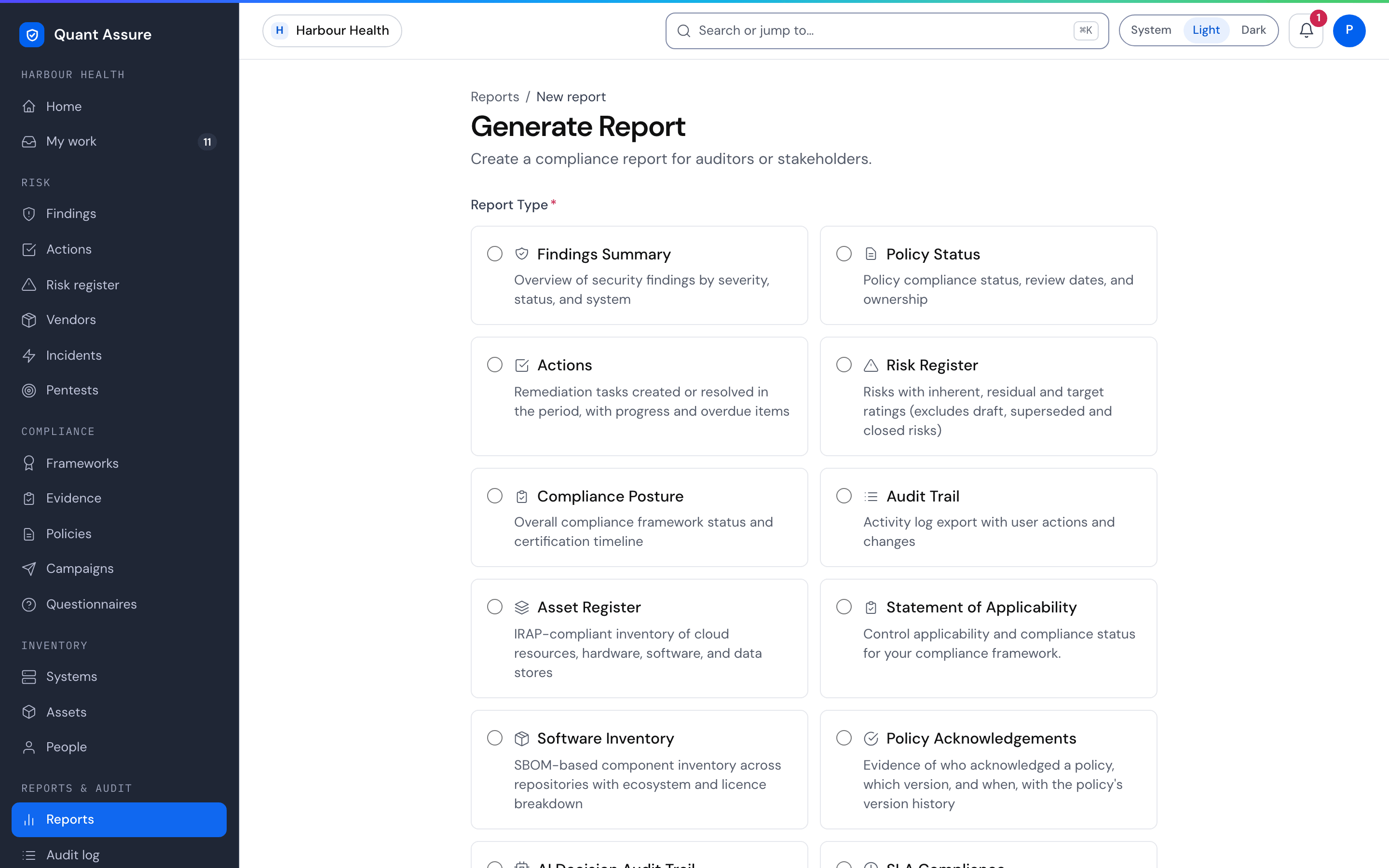
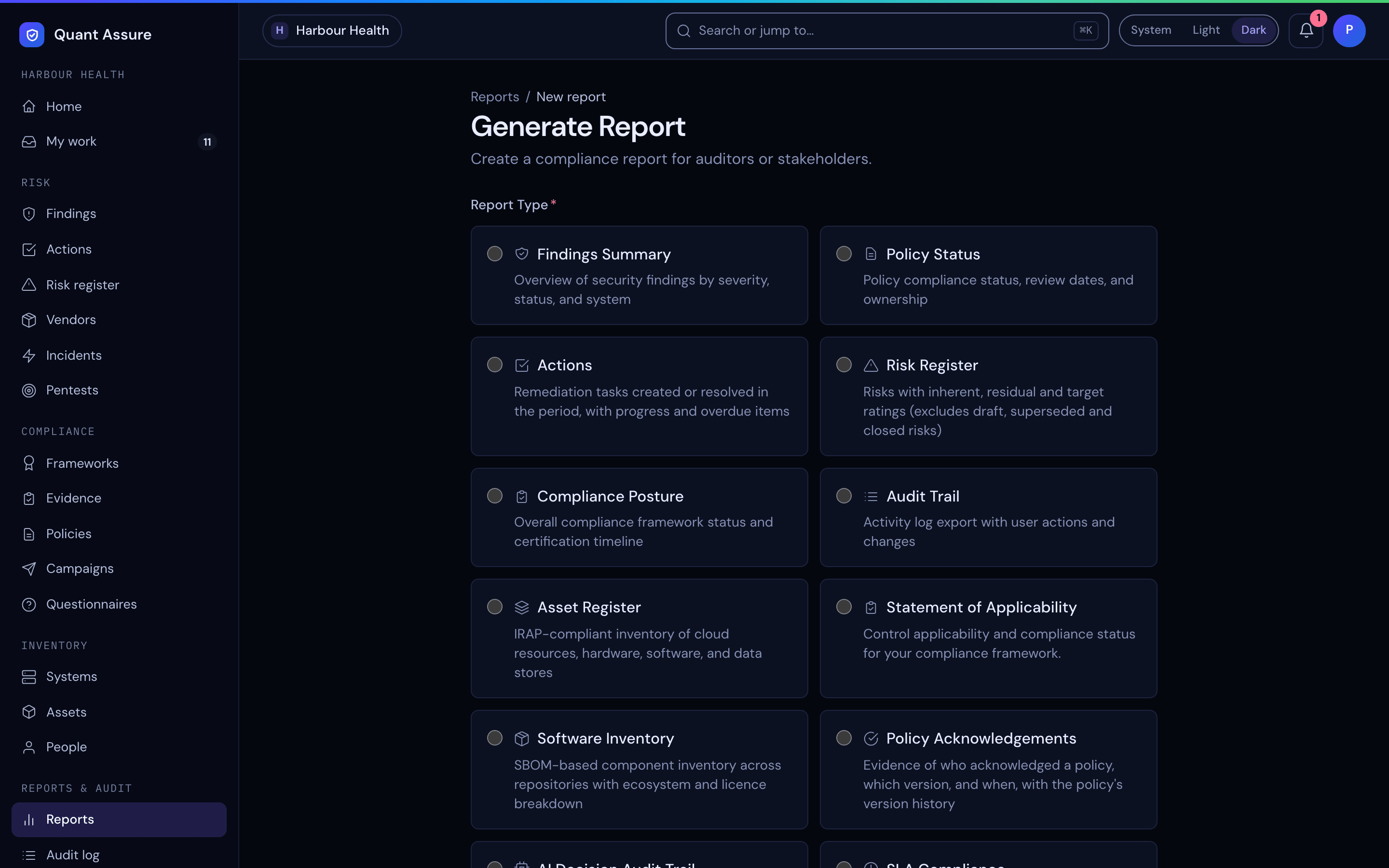
Pick a type, name it, choose the period if the report takes one (dates are inclusive — a period ending 2 July includes all of 2 July, in your local time), set any filters the report offers, and generate. The report is generated as soon as you choose Generate Report, and opens finished. The report stores its data at generation time, so the evidence is stable even as your live data changes.
Period or "as of"
The form offers period dates only to reports that apply them. The others are registers and current status: they show the state when the report is generated, and the report page and PDF show As of that time instead of a period. To evidence a past quarter for one of these, generate it at the end of the quarter and keep it.
| Report | Covers |
|---|---|
| Findings Summary | Period: findings last seen in it |
| Actions | Period: actions created or resolved in it. Status, priority and overdue are as at generation |
| Audit Trail / Support Access | Period: events in it |
| Policy Acknowledgements | Period: acknowledgements made in it |
| AI Decision Audit Trail | Period: AI decisions made in it |
| SLA Compliance | Period: findings resolved in it. The open-findings snapshot is as at generation |
| Board Summary | Period: what changed in it. Posture score, open findings, SLA, readiness and top risks are as at generation |
| Policy Status / Risk Register / Compliance Posture / Asset Register / Statement of Applicability / Software Inventory | As of generation |
The API and the MCP generate_report tool refuse a period for
an "as of" report, with the error invalid_filters. Reports
generated before this check may have stored a period they did not apply;
their report page and PDF show it as not applied, with the
generation time the data is from.
Filters
The form offers only the filters the chosen report applies. A report page and its PDF list the filters it applied, with systems, framework and policy named, so a reader can see what it covers.
| Report | Filters |
|---|---|
| Findings Summary | AI-adjusted severity, status, systems |
| Actions | Priority, status, systems (the action's linked system) |
| Asset Register | Asset types, classification, systems |
| Software Inventory / AI Decision Audit Trail / SLA Compliance | Systems |
| Statement of Applicability | Framework (required: one per SOA) |
| Compliance Posture | Framework (optional). Limits the compliance targets covered; system and open-finding counts stay organisation-wide |
| Policy Acknowledgements | Policy (required) |
| Risk Register | Include closed risks |
| Policy Status / Audit Trail / Support Access / Board Summary | None. These always cover the whole organisation |
A systems filter leaves out items linked to no system. Leave every system
ticked to include them. The API and the MCP generate_report
tool refuse a filter the report does not apply, with the error
invalid_filters, rather than produce a report that looks
filtered and is not.
Board Summary
One printed page for a board risk committee. It uses the same figures as Home, so the number in front of the board is the number on your dashboard:
- Posture score and trend — the score now, and the change since the start of the period once score history reaches back that far.
- Open findings by severity — AI-adjusted counts with the raw scanner counts beside them, so the effect of the AI reclassification is visible.
- SLA — findings overdue and at risk under your SLA policy.
- Readiness — the percentage for each compliance framework you target, with the average and how many were assessed ("N of M frameworks assessed"). A framework that has not been assessed shows "Not assessed" and is left out of the average, not counted as 0%.
- Top five risks — by AI-adjusted severity, then likelihood.
- What changed — in the period: new findings, resolved findings, AI reclassifications, "Overridden by your team" (severity overrides) and compliance drift. Both severity figures count what happened in the period, so a later override never changes the figures for a past period. Board summaries created before overrides were counted show a dash for that figure.
Open Print / Save as PDF on the report for the one-page version.
The Two Flagship Audit Reports
Generate these two first — together they are your first audit pack.
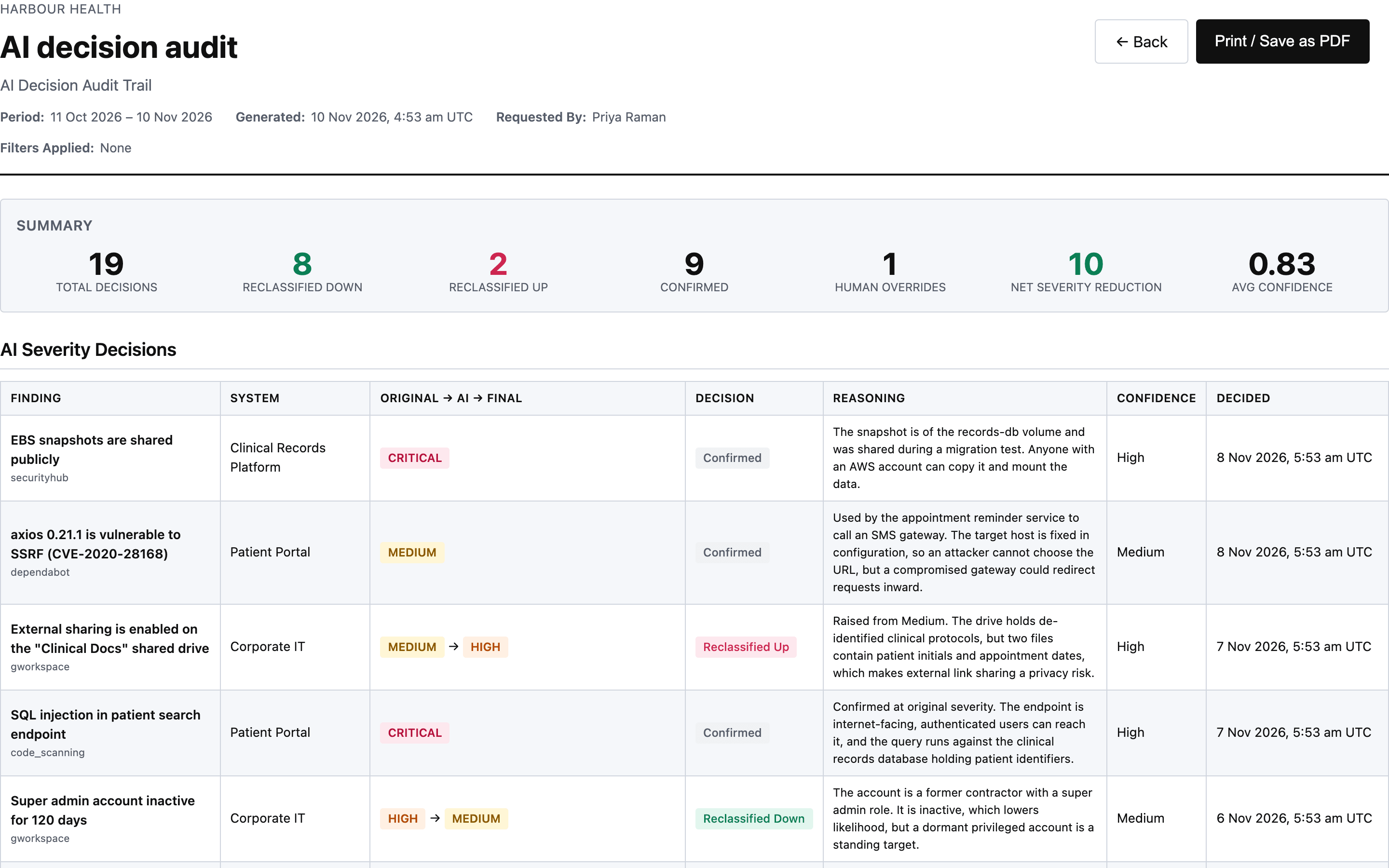
AI Decision Audit Trail — the export that makes AI triage defensible. Every decision, including the ones where the AI confirmed the scanner's severity, with the reasoning text in full. Where a person overrode the AI's severity, the report shows the AI's decision unchanged beside the override, with who made it, when and why. A finding that a person overrode but the AI never analysed appears as a Human override (not analysed by AI) row, since there is no AI decision to show. The summary counts them as Human Overrides:
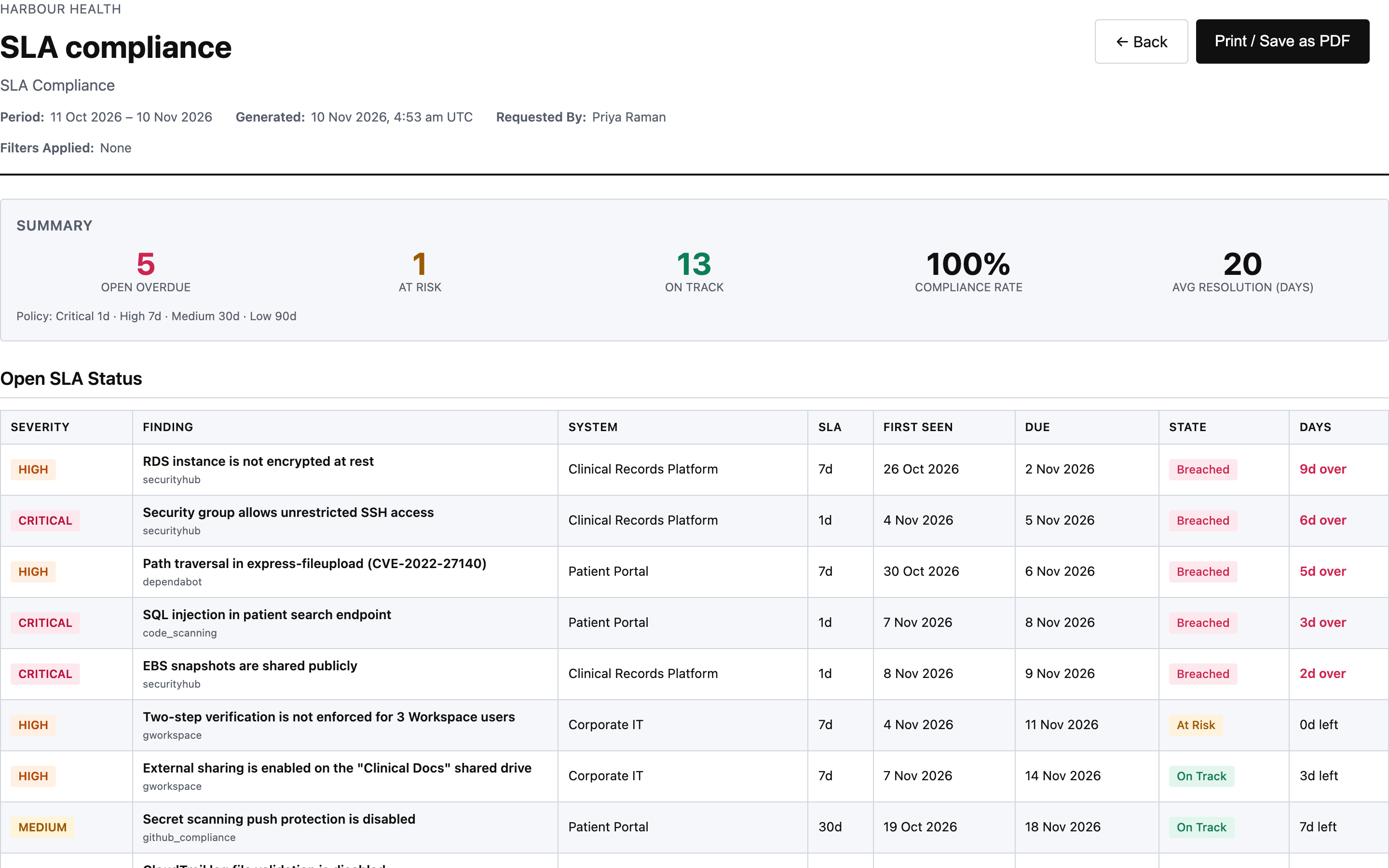
SLA Compliance — your response-time performance against the policy, overdue items ranked most-overdue first:
PDF suits auditors and management; CSV imports into other tools; JSON is for programmatic use. All three come from the same generated report.
All Report Types
| Report | What it evidences |
|---|---|
| AI Decision Audit Trail | Every AI severity decision in the period — original vs adjusted, decision type (reclassified up/down/confirmed, or a human override the AI never analysed), reasoning, confidence, run provenance, and any human override with who, when and why |
| SLA Compliance | Open-findings SLA snapshot + resolution performance: met/missed per finding, compliance rate overall and per severity, with the SLA policy printed. Resolved and remediated findings are judged by when they closed; dismissed and source-removed findings are not judged |
| Support Access | Quant Support's access to your organisation in the period, for third-party access reviews: counts of accesses, support cases, tokens and tools; each support token live in the period with who issued it, its expiry and who revoked it; and every access, grouped by support case, with its time, token, tool and the ids of the entities touched. It holds no token values, and never the data returned. See Support Access |
| Findings Summary | Finding counts and detail for the period, by AI-adjusted severity, with the scanner's original severity kept alongside |
| Compliance Posture / SOA | Control statuses; Statement of Applicability export for one framework. Choose the framework when generating an SOA: it defaults to your first compliance target, and Generate Report on a framework's readiness tab opens it for that framework. The SOA states the framework it covers, and compares only with earlier SOA snapshots of the same framework. Generate Report on a compliance target opens Compliance Posture for that target's framework |
| Policy Status / Policy Acknowledgements | Policy review state; for one policy, who acknowledged which version and when in the period, with its version history. Choose the policy when generating, or use Export Evidence on the policy page for every acknowledgement to date |
| Risk Register / Asset Register / Software Inventory | The corresponding registers, as of generation |
| Audit Trail / Actions | User actions and changes in the period; remediation tasks created or resolved in the period |
Very large periods. The Audit Trail and Support Access reports include at most 50,000 audit events. If a period has more, the report keeps the most recent 50,000 and says so on the report page, in the PDF and at the top of the CSV. Generate it for a shorter period to get every event.
Which risks appear in reports. The Risk Register report, its CSV and print view, the risk matrix, and risk counts in posture summaries leave out Draft risks (work in progress) and Superseded risks. Closed risks appear only when you tick Include closed risks when generating a Risk Register report. Every other status is included. The excluded statuses are printed on every Risk Register report. Drafts remain visible on the Risk Register page, where you edit them.
You're onboarded. From here, the day-to-day work lives in Actions (remediation tracking), Policies & Campaigns, Compliance, and Audit log.